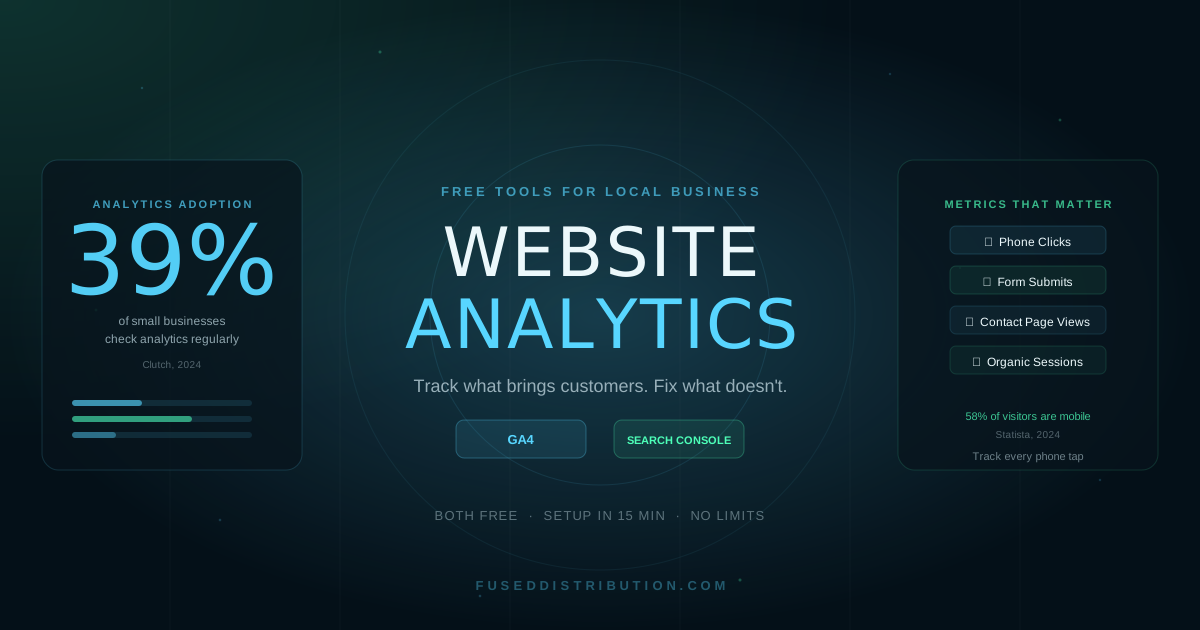
In 2025, Google Analytics was installed on 55.8 percent of all websites worldwide (W3Techs, Google Analytics Market Share Report, retrieved May 2026). Yet in a 2024 survey of small business owners, only 39 percent said they check their website analytics on a regular basis (Clutch, Small Business Website Survey 2024). That gap is expensive. You can't fix what you can't see, and you can't see anything without tracking.
The good news: both tools you need are completely free. Google Analytics 4 tracks how visitors move through your site. Google Search Console shows which keywords brought them there. This guide explains how to set up both, which numbers actually matter for a local business, and how to turn monthly data into concrete decisions. Before reviewing analytics though, make sure your site has the essential pages visitors need to actually convert.
- In 2024, only 39% of small businesses checked website analytics regularly (Clutch, Small Business Website Survey 2024)
- Google Analytics 4 and Google Search Console are both free with no traffic limits
- Phone number clicks and contact form submissions are the two metrics that directly predict revenue
- GA4 setup takes under 15 minutes; Search Console verification takes under 5 minutes
- Connecting both tools reveals which search queries are driving your highest-converting visitors
What Does Google Analytics 4 Actually Track?
In 2023, Google replaced Universal Analytics with GA4 as its standard measurement platform (Google Search Central, GA4 Transition Documentation, July 2023). GA4 tracks visitor behavior using an event-based model. Every action on your site, from a page view to a button click, is logged as an event. For a local business, seven data types matter most:
- Sessions: How many times people visited your site, regardless of how long they stayed
- Users: How many distinct people visited (one person visiting three times = 1 user, 3 sessions)
- Engaged sessions: Sessions where someone stayed at least 10 seconds or visited two pages. More useful than raw sessions.
- Traffic source / medium: Where visitors came from: Google organic search, direct, paid ads, social, or referral
- Page views by page: Which pages got the most traffic and how that traffic breaks down by source
- Events: Specific actions including button clicks, form submissions, phone link taps, and file downloads
- Conversions: Events you mark as important, meaning they represent actual customer intent
The big difference from older analytics tools is that GA4 does not use "bounce rate" in the same way. Instead it uses "engagement rate" (the inverse). A 70 percent engagement rate means 70 percent of sessions involved actual interaction. That framing is more accurate for local business sites where someone might read a single page, find your phone number, and call without ever clicking again.
How to Set Up GA4 on Your Local Business Website in 15 Minutes
As of 2025, Google Analytics 4 is the only version of Google Analytics available for new properties. Setup requires a Google account and access to edit your website's code or settings panel. Here's the exact process:
- Go to analytics.google.com and sign in with your Google account. If you use Gmail for your business, use that account.
- Click "Start measuring" to create a new account. Name it after your business. Under "Data sharing settings," the defaults are fine.
- Create a property. Name it your website domain (e.g., "myplumbingco.com"). Set your time zone and currency to match your location.
- Select your business type on the next screen. Choose "Local" if available, or the closest match.
- Choose "Web" as your platform on the data stream setup screen. Enter your website URL.
- Copy your Measurement ID (format: G-XXXXXXXXXX). This is your unique tracking code.
- Add the tracking code to your site. How you do this depends on your platform:
- WordPress: Install the "Site Kit by Google" plugin and connect your GA4 property through it. No code required.
- Squarespace: Settings → Developer Tools → Google Analytics → paste your Measurement ID.
- Wix: Settings → Tracking & Analytics → + New Tool → Google Analytics. Paste the Measurement ID.
- Custom site: Add the gtag.js snippet (provided by GA4 after you create the stream) to the <head> of every page.
- Verify it's working. Visit your website from a different browser or incognito window. In GA4, check the Realtime report. Your visit should appear within 30 seconds.

Which Traffic Source Brings the Most Local Customers?
In 2024, BrightLocal's Local Consumer Review Survey found that 98 percent of consumers used the internet to find local business information in the past year (BrightLocal, Local Consumer Review Survey 2024). For most local businesses, the majority of that web traffic arrives through organic Google Search. The chart below shows the typical traffic breakdown for a local service business based on the traffic mix we typically see for local service businesses:
If your organic search share is significantly below 60 percent, your site may have a local SEO gap. If direct traffic is high but organic is low, it usually means people already know about you but new customers can't find you. Either problem is fixable once you see it. For more on fixing the organic gap, see our guide on how to rank in Google's Map Pack with local SEO.
How to Connect Google Search Console for Free Keyword Data
Google Search Console shows the exact keywords people typed into Google before clicking through to your site. GA4 does not include this data by default. Connecting the two tools takes under five minutes and adds a layer of information that changes how you read your traffic reports.
To verify your site in Search Console: go to search.google.com/search-console, click "Add property," choose "URL prefix," enter your site URL, and select the HTML tag verification method. Copy the meta tag it gives you and paste it into the <head> of your homepage. Click "Verify."
To link Search Console to GA4: inside GA4, go to Admin → Property Settings → Search Console Links. Click "Link" and select your verified Search Console property. Once connected, you'll find a new "Search Console" section under "Reports → Acquisition → Search Console." This shows:
- Queries: The exact search terms that brought people to your site and how many times each appeared
- Landing pages: Which pages people arrived on from Google and which queries led to each page
- Impressions vs. clicks: How often your site appeared in Google results versus how often people actually clicked
- Average position: Where your pages rank in Google results for each query (position 1 = top result)
A low click-through rate with a strong average position (1-3) usually means your page title or description isn't compelling enough in the search results. That's a quick text fix. A high click-through rate with a poor average position means people want what you offer but your page isn't ranking where it should.
How to Set Up Conversion Tracking That Actually Counts Customers
Page views don't pay your bills. Phone calls do. GA4 includes a set of "enhanced measurements" that automatically track some events, including outbound link clicks. But to track phone number taps on mobile specifically, you need to mark your phone link click events as conversions.
Here's the fastest approach for most local business sites: in GA4, go to Admin → Events. Look for an event called "click" with the label matching your phone number URL (it will appear as an outbound click with your tel: link). Once you see it firing, click the toggle to mark it as a conversion. GA4 will now count every phone number tap on your site as a conversion event and show it prominently in your reports.
For contact form submissions: most website platforms fire a "form_submit" event automatically when someone completes a form. Check Events in GA4 after someone fills out a test submission. If the event appears, mark it as a conversion using the same toggle.
With conversions set up, your main report view changes entirely. Instead of seeing "I got 340 visitors this month," you see "I got 340 visitors, 22 of them clicked to call, and 9 submitted the contact form." That's actionable. If your site speed is slowing down the path to those conversions, see our breakdown of the Core Web Vitals metrics that cost local businesses the most.
How to Read Your Data in 15 Minutes a Month
You don't need to study analytics daily. A monthly review covering four questions takes about 15 minutes and gives you enough information to make real decisions:
- Did organic sessions go up or down compared to last month? Find this under Reports → Acquisition → Traffic Acquisition. Filter by "Google / organic." A month-over-month dip of more than 15 percent is worth investigating.
- How many people visited the contact page? Go to Reports → Engagement → Pages and Screens. Find your contact or services page. The trend matters more than the absolute number.
- How many conversions happened? The Conversions card on the Home tab shows total conversions this month. Compare to last month. If conversions dropped but traffic stayed flat, the issue is on-page (copy, form, speed). If both dropped, the issue is traffic (SEO, seasonality).
- What device are people using? Reports → Tech → Tech Overview shows the mobile vs. desktop split. If more than 60 percent of your visitors are on mobile and your phone number isn't a tappable tel: link, you're losing calls every single day.

One thing to watch for is the gap between Google Search Console impressions and GA4 sessions. If Search Console shows your site appearing 2,000 times per month in Google results but GA4 only records 140 sessions from organic, your click-through rate is very low. That usually means your page titles and meta descriptions need rewriting to be more specific and compelling in search results.
Frequently Asked Questions
Read next: How to read your Google Business Profile Insights metrics to understand the traffic that comes directly from your GBP listing rather than your website.
Sources
- W3Techs, "Google Analytics Market Share Report," retrieved May 2026, w3techs.com
- Clutch, "Small Business Website Survey 2024," retrieved May 2026, clutch.co
- BrightLocal, "Local Consumer Review Survey 2024," retrieved May 2026, brightlocal.com
- Statista, "Mobile Traffic Share Worldwide 2024," retrieved May 2026, statista.com
- Google Search Central, "GA4 Transition Documentation," July 2023, support.google.com