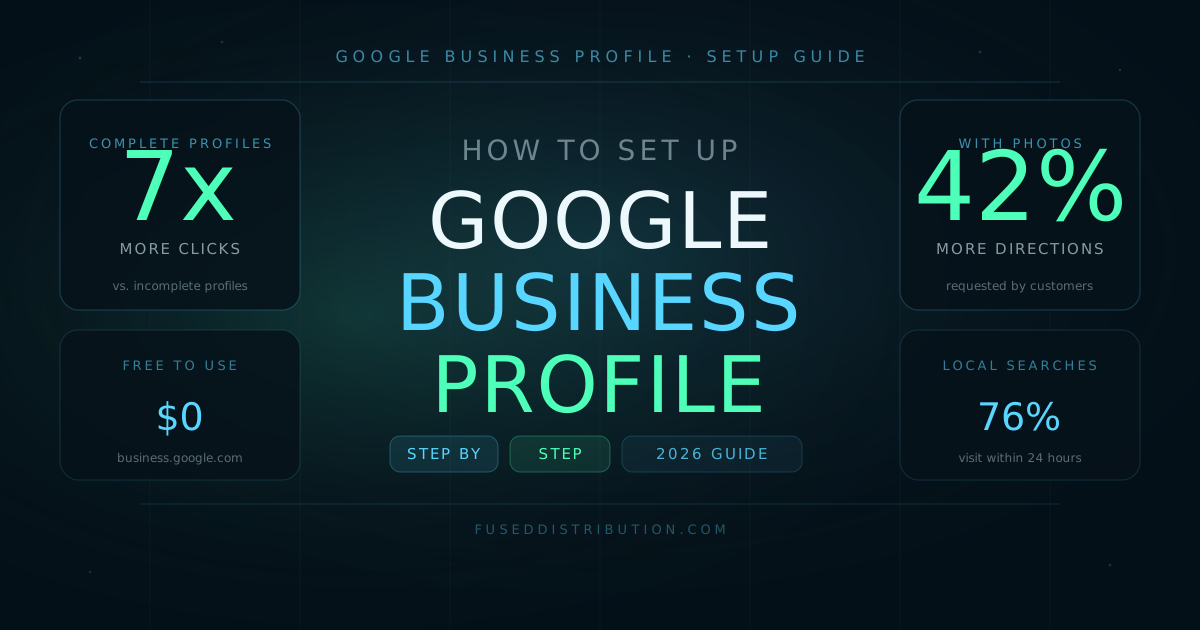
Setting up a Google Business Profile correctly takes about 30 minutes and puts your business in front of local customers who are searching right now. Complete profiles get 7x more clicks than incomplete ones, according to Google. Businesses with at least 10 photos receive 42 percent more direction requests. Both of those gains are free. The only cost is the time to do the setup correctly.
46 percent of all Google searches have local intent. Local SEO and Google's Map Pack cover how ranking works once your profile is live. This guide covers the setup: every field, every step, and what to watch for at each one.
Step 1: Access Your Google Business Profile Account
Go to business.google.com and sign in with the Google account you use for your business. If you don't have a Google account for the business, create one before starting.
Google searches for existing profiles when you start. If your business already appears, you'll be asked to claim it. Claim it if it exists rather than creating a duplicate. Duplicate listings split your reviews and confuse customers. If no listing exists, you'll create a new one.
- Enter your exact business name as it appears on your signage and website
- If Google suggests an existing listing, compare the name, address, and category before claiming
- Do not create a second listing for a business that already has one, even if the existing listing is incomplete
Step 2: Choose Your Primary Business Category
Your primary category is the single most important field in your GBP. It determines which local search queries your profile is eligible to appear for. Choosing the wrong category keeps you out of searches even if every other field is perfect.
Pick the most specific category that accurately describes your main service. "Plumber" is better than "Contractor." "Italian Restaurant" is better than "Restaurant." If you offer multiple services, set the most revenue-generating one as your primary, then add secondary categories for the others.
- Type your service into the category field and review all suggestions before committing
- If two categories fit equally well, choose the one with more searches in your area (check this by searching the term on Google Maps and seeing which category most competitors use)
- You can change your primary category later, but it resets some ranking signals temporarily

Step 3: Complete All Profile Fields
Google rewards complete profiles. Work through every available field:
- Business name: Exact legal name. No keyword stuffing.
- Address: Match exactly what's on your website and other online listings. This is your NAP consistency, which Google checks across the web.
- Phone number: A local number is better than a toll-free number for local ranking. Use the same number everywhere.
- Website: Link to your homepage or a location-specific landing page.
- Business hours: Set accurate hours. Mark holiday closures. Customers who arrive at a closed business leave a bad review.
- Business description: 750 characters maximum. Write naturally about what you do and where you serve. Mention your city and key service naturally once each. Do not repeat keywords.
- Services or products: List every service you offer. Each service entry is an opportunity to appear in additional searches.
Step 4: Verify Your Business
Google requires verification to confirm you control the business. The options available depend on your business type and location:
- Postcard: Google mails a card with a 5-digit code to your business address. Takes 5-14 days. Most common option.
- Phone or text: Google calls or texts a code immediately. Only available for certain business types.
- Email: Available for some business types when you have a matching domain email address.
- Video recording: Newer option. You record a short video showing your storefront, equipment, and business operations. Typically resolves in 3-5 business days.
- Instant verification: Available if you've already verified your business website with Google Search Console using the same Google account.
Choose the fastest option available. Your profile is limited until verification completes. You cannot respond to reviews, access full Insights data, or appear prominently in the Map Pack before verification.
Step 5: Add Photos and Keep Them Current
Profiles with photos get 42 percent more direction requests and 35 percent more website clicks than profiles without photos, according to Google. Add photos before your profile goes fully live.
- Exterior photos: Your storefront from multiple angles, including the street view. This helps customers confirm they've found the right place.
- Interior photos: Inside your space so customers know what to expect before they arrive.
- Team photos: Your staff in working conditions. Not stock photography.
- Work or product photos: Examples of your services performed or products you sell.
Minimum photo specifications: 720 x 720 pixels, JPEG or PNG, 10KB to 5MB. Cover photo dimensions are 1080 x 608 pixels. Upload your best exterior photo as the cover.
Step 6: Set Up Review Management
Reviews are the second-largest local ranking factor after category selection. Start building your review volume as soon as verification completes.
- Get your review link: In your GBP dashboard, find "Get more reviews." Copy the short link and use it in follow-up emails, receipts, and text messages.
- Ask promptly: The best time to ask for a review is 24-48 hours after service completion, when the experience is fresh.
- Respond to every review: Good and bad. A professional response to a negative review is visible to every future customer. The process for getting consistent Google reviews covers the system in detail.
Step 7: Monitor Performance With GBP Insights
Once your profile is live, check Google Business Profile Insights once a week. The metrics that tell you if your profile is working:
- Discovery searches: People who found you by searching for your service type, not your business name. High discovery searches mean the profile is doing its job.
- Direction requests: Strong signal of intent. These are people actively planning to visit.
- Website clicks: Track this alongside your website analytics to see if GBP is sending converting traffic.
- Call clicks: Every phone call from GBP is a tracked conversion. Check these monthly against your total inbound calls.
Read next: What Your Google Business Profile Insights Are Actually Telling You
Frequently Asked Questions
Sources
- Google — Google Business Profile Help Center. support.google.com/business
- Google — Photos and your Business Profile. support.google.com/business/answer/6103862
- Whitespark — Local Search Ranking Factors Survey 2024. whitespark.ca
- BrightLocal — Local Consumer Review Survey 2024. brightlocal.com