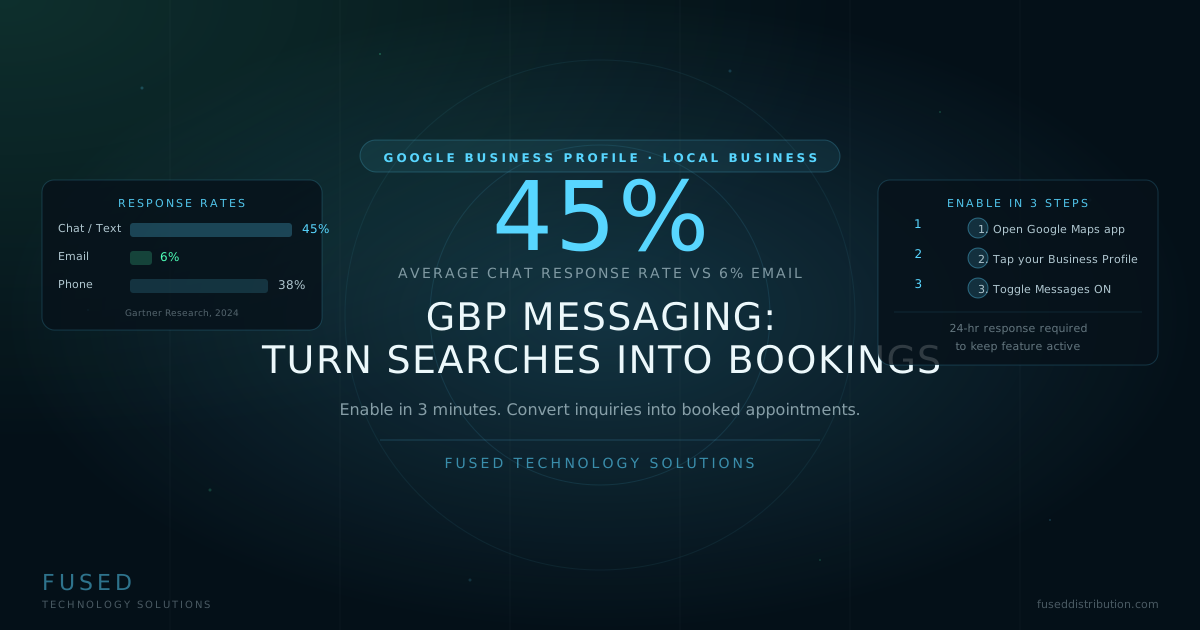
Most local businesses have a Message button they could be showing on their Google listing right now. They don't, because nobody turned it on. Google Business Profile messaging is free, takes about three minutes to enable, and puts a direct chat thread between your business and anyone searching for you on Google or Maps. Customers tap one button and the conversation starts. No app required on their end.
The businesses already using it are seeing the benefit. According to Google's own data, verified businesses that respond to messages consistently get more direct customer interactions than those with messaging disabled. Text-based conversations close faster than email chains and don't get buried the way voicemails do. For a local business competing in a tight market, that gap matters.
If you've already set up your Google Business Profile and understand your Insights metrics, messaging is the next channel to activate. This post walks through enabling it, writing a welcome message that actually works, and turning those first contacts into bookings or sales calls.
What Google Business Profile Messaging Actually Does
GBP messaging adds a "Message" button directly to your Google Search listing and your Maps listing. When a customer taps it, a chat thread opens inside Google Maps on their phone. They type their question. You get a notification and reply through the Google Maps app or your GBP dashboard on desktop. That's the whole mechanic.
The conversation lives in Google's infrastructure. Your customer doesn't need your phone number. You don't need theirs. It's a contained channel, which some customers prefer precisely because it isn't a full phone call commitment. Many people searching on their phones would rather fire off a quick message than dial and wait on hold.
Google introduced GBP messaging in 2017 and expanded it significantly in 2021 after data showed strong customer adoption. In 2022, Google integrated messaging more tightly into the Maps app and added read receipts. In 2025, Google began surfacing active messaging businesses more prominently in local results for queries where the user intent signals a desire to contact a business directly.
How to Enable GBP Messaging in 3 Minutes
Enabling messaging is a one-time setup. After that, incoming messages arrive in your Google Maps app the same way a text notification would. Here's the exact path:
- Download the Google Maps app on your iOS or Android phone if you haven't already. This is where messages arrive and where you'll reply.
- Sign in with the Google account that manages your Business Profile. If you're unsure which account that is, go to business.google.com and check which login has access.
- Tap your profile photo in the upper-right corner of the Maps app, then tap "Your business profiles."
- Select your business. You'll land on the business management overview screen.
- Tap "Messages" in the tab row (you may need to scroll right to find it).
- Toggle messaging ON. The button should turn blue. You'll see a prompt to write a welcome message.
- Enable push notifications for the Maps app so you don't miss incoming messages. On iOS: Settings › Maps › Notifications. On Android: Settings › Apps › Maps › Notifications.
That's it. Your listing will now show a "Message" button within a few minutes of enabling it. Test it by searching for your own business on a separate phone or incognito browser and tapping the button.
What Does the Response Time Requirement Actually Mean?
Google requires a 24-hour average response time to keep messaging active on your listing. If your average creeps above that threshold, Google turns the feature off automatically. You'll lose the Message button until you re-enable it and bring response times back down.
In practice, this means you need to be checking the Google Maps app at least once daily. Most businesses that use messaging successfully treat it the same way they treat a text from a customer: read it during normal business hours and reply before the day ends. You don't need to answer in 10 minutes. You do need to answer before tomorrow.
The 45 percent response rate for chat and text versus 6 percent for email isn't surprising once you've used both channels. Email gets buried. Chat threads feel immediate on both sides. A customer who messages your GBP listing is probably on their phone right now, actively looking for your service. They're more likely to book in that same session if you reply within a few hours than if you send an email back tomorrow morning.
Writing a Welcome Message That Moves the Conversation Forward
When a customer starts a chat with your business, your welcome message fires automatically before you've typed a single word. Most businesses either skip it or write something generic like "Thanks for reaching out! We'll get back to you soon." That's a missed opportunity.
A good welcome message does two things: it acknowledges the inquiry and it asks a qualifying question. That question prompts the customer to give you the information you need to actually help them, which means when you reply personally, you're already moving toward a booking instead of still gathering basic facts.
Here are three templates that work across different business types:
- Service-based (plumber, electrician, cleaner): "Thanks for messaging [Business Name]. To help you quickly, what service do you need, and what's your zip code? We'll confirm availability and pricing right away."
- Appointment-based (salon, clinic, consultant): "Hi, thanks for reaching out to [Business Name]. What day works best for you, and is there anything specific you'd like addressed at your appointment?"
- Retail/product-based: "Thanks for messaging [Business Name]. What product or brand are you looking for? If you let us know what you need, we can check stock before you come in."
Keep the welcome message under 160 characters. Longer messages look like form letters and reduce the chance of a reply. Write it like you'd write a text to someone you're genuinely trying to help.
How to Convert a GBP Chat Into a Booked Appointment
The chat is the opening. Booking is the goal. Most businesses treat messaging as a support channel and wonder why it doesn't generate more sales. The gap is usually in how they handle the first two or three replies.
Here's the pattern that works:
- Reply within two hours. Anything faster than that is excellent. Anything over four hours and the customer has probably already called someone else. Set a daily reminder if needed.
- Answer the customer's question first, then ask one clear question. Don't ask three questions at once. People answer one question via text. Three questions get ignored.
- Offer a specific time slot, not an open-ended invitation. "Are you free for an appointment?" gets a maybe. "We have a slot Tuesday at 2pm or Wednesday at 10am. Which works?" gets a decision. Two options is the sweet spot.
- Confirm the booking in the chat. Send a summary: service requested, date, time, address. This creates a paper trail in the customer's conversation thread, which reduces no-shows.
- Send a follow-up reminder. You can do this manually via GBP messaging 24 hours before the appointment, or route confirmed bookings into an SMS tool like your text message marketing sequence.
The businesses that get the most from GBP messaging treat it as a sales channel with a clear conversion path. Not a support inbox where messages pile up unanswered.
What to Do When You Can't Respond Right Away
GBP messaging doesn't have an "out of office" mode built in, but there are two ways to handle gaps in availability. First, your welcome message can set expectations: "We respond to all messages during business hours (Mon-Sat, 9am-6pm). We'll get back to you within a few hours." Customers are fine with waiting if they know the timeline upfront.
Second, if you're a solo operator or a small team that gets slammed during busy periods, consider setting a 15-minute window three times daily (morning, lunch, after close) to clear GBP messages. That rhythm keeps your average response time well under 24 hours without requiring you to watch the app constantly.
If you're regularly getting more messages than you can handle, that's a good problem. It usually signals you need either a part-time assistant or a booking system that customers can complete on their own. Understanding your GBP Insights data shows you how much traffic is hitting your listing and what percentage is converting to contact actions.
Frequently Asked Questions
Read next: How Local SEO Gets Your Business Into Google's Top 3 Results
Sources
- Google Business Profile Help, "Turn on messaging for your Business Profile," retrieved 2026-06-06, support.google.com/business/answer/9114771
- Gartner Research, "Business Communication Channel Benchmarks," 2024
- Google, "Messages feature update and local search integration," Google Business Blog, 2025
- Salesforce, "State of the Connected Customer," 6th Edition, 2024, retrieved 2026-06-06, salesforce.com