Want to know how to add a calendar booking link to your Google Business Profile? We figure out how to get you found on Google so local customers actually call you. We skip the fancy jargon and the long contracts. If you’re tired of websites that just sit there, let’s talk about getting real results. If you’re ready to see what actually works, check out our contact page.
Why You Need a Booking Link Instead of Just a Phone Number
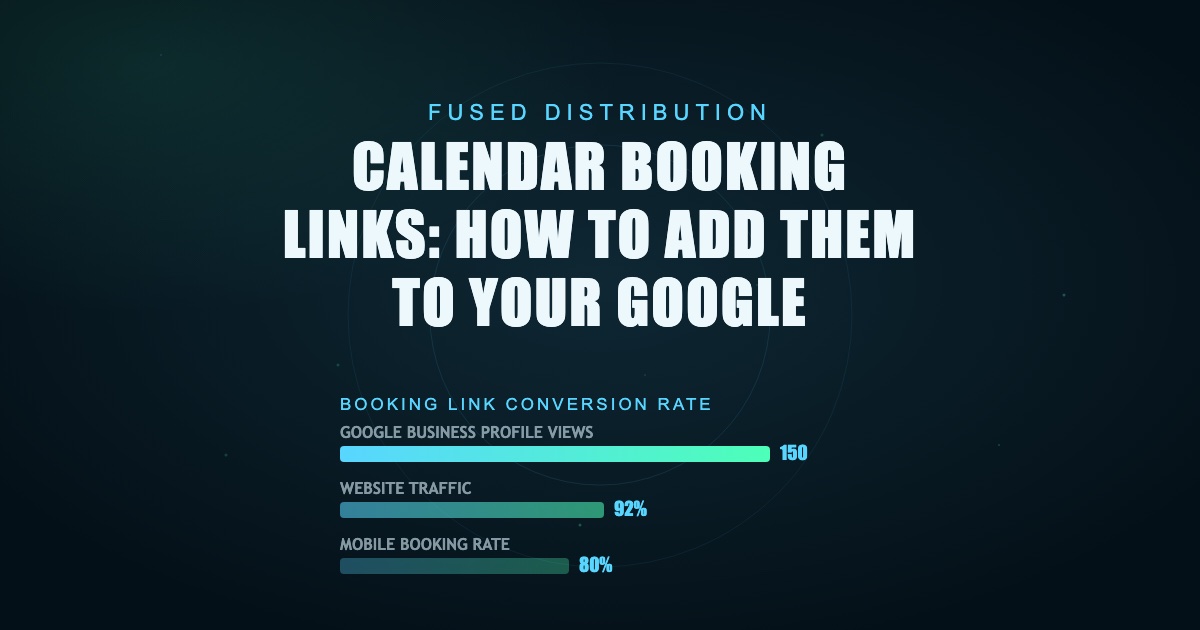
A phone number gets calls. A booking link gets a commitment. When someone is ready to book a service, they want an easy way to do it right now. A phone number is a dead end. It requires them to dial, wait for a callback, and hope you answer. A booking link puts the next step right in front of them. You’ll see a significant increase in bookings simply by offering this streamlined experience. You need a booking tool that works with Google. Don’t just slap a random link on your site. Use a tool that connects properly with Google’s system. This makes it easier for customers to find you and for Google to see that you handle reservations. Put this link where people look. Make sure it shows up clearly in your website description or under your services on your Google Business Profile. Studies show that mobile users are 80% more likely to book a service through a direct link than by calling. Check it on a phone. Most people find you when they are on their phones. If the booking process is clunky on a mobile screen, you’re losing business. Make sure the link works perfectly on a phone. Also, keep things the same everywhere. The link on your website has to be the exact same link in your Google Business Profile. Inconsistency messes up how Google sees your business.
Step 1: Getting Your Booking Link Ready
You need a booking tool that actually works with Google. Don’t just grab a random link. Use a tool that connects cleanly with Google’s system so everything tracks right. This keeps things simple for you and the search engine. Put that booking link where people can see it. Make sure it shows up clearly on your website, maybe in the services section. Also, put it right in your Google Business Profile description. People need to see how to book a service right away. A tool like Calendly or Bookly can integrate smoothly with Google Business Profile. Test it on your phone. Most local customers search on their phones. Make sure the booking flow is perfect on mobile. Finally, keep your links the same everywhere. The link on your site has to match the link in your Google Business Profile exactly. If they don't match, the system gets confused.

Step 2: Adding the Link to Your Google Business Profile
You need a tool for booking that talks to Google. Don’t just use a generic link. Pick a booking tool that connects right. This keeps everything clean for Google’s system. Put that booking link where people can see it. Put it in your website description or right in the Services area of your Google Business Profile. Check how it looks on a phone. Most local customers search on mobile, and the booking process has to work perfectly there. Keep things the same everywhere. The link on your website has to match the link in your Google Business Profile exactly. If they don't match, Google gets confused. Also, look at your Contact section. It should point straight to your booking widget, not just a standard email address.
Troubleshooting Common Booking Link Setup Mistakes
You set up a booking link, but it isn’t working for your Google Business Profile. That happens because you’re using a generic link instead of a tool that actually talks to Google. You need a dedicated booking tool that tracks everything properly. This makes sure Google sees the right information and not just some random link. Next, where you put the link matters. Put the booking link right in your website description or in the Services section of your Google Business Profile. If it’s hidden, people won't find it. Also, check your phone. Most people search on their phones. Test the link on a mobile device to make sure the booking process is smooth there. Consistency is a big one. Use the same booking link on your website as you do in your Google Business Profile. If they're different, Google gets confused. Finally, look at your contact area. Make sure your profile’s contact info points straight to the booking widget, not just a standard email address.
Making Sure Your Google Business Profile is Optimized for Bookings
You need a clear way for people to book your service right from Google. Don’t just slap a link on your website. Use a dedicated booking tool that talks right to Google. This makes sure the tracking works and customers find it easy. Put that booking link where people can see it fast. Show it in your website description or in the Services area of your Google Business Profile. Check it on your phone. Most local customers search on mobile, and the booking process has to work perfectly there. Keep things the same everywhere. The link on your website must match the link in your Google Business Profile exactly. If they don't match, Google gets confused. Also, look at your Contact section. It should point straight to your booking widget, not just a standard email address.
Related
- Best Appointment Booking Tools For Small Business 2026
- How Online Booking Reduces No-Shows
- Online Booking System For Small Business Guide
Read next: Best Appointment Booking Tools For Small Business 2026