Chatterbox can turn a written script into a voice track you can use in a business video. The useful workflow is not simply “paste text and press generate.” You need a clean script, a voice you have permission to use, measured settings, checked audio, and captions that match what was actually spoken. This guide walks through that process and explains where a local Chatterbox setup fits.
What Chatterbox does
Chatterbox is an open source text to speech project from Resemble AI. Its repository includes multiple model families, so check the current model documentation and the code installed in your environment before following a command or copying a setting. The original Standard model exposes controls such as exaggeration and classifier free guidance (CFG). Other model variants have different controls and tradeoffs. A setting that works in one variant should not be assumed to exist or behave the same way in another.
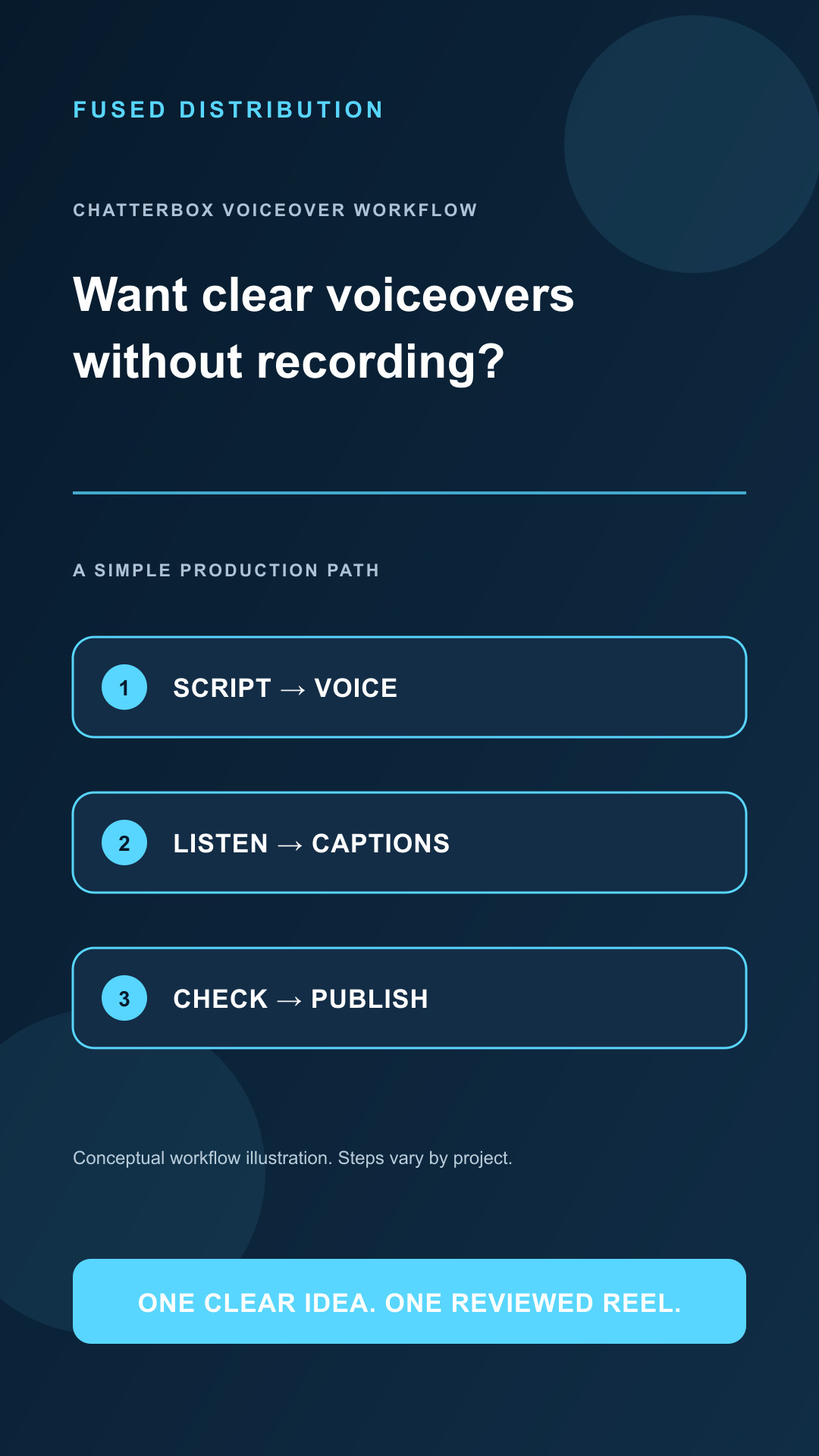
For business production, think of Chatterbox as one step in a media pipeline. A script becomes audio; audio becomes captions and a timed video; the finished export then passes quality and licensing checks before publication. The model does not verify your script, confirm rights to a voice sample, correct factual claims, or guarantee clean timing. Those jobs stay with the producer.
Start with a script that is easy to say
Write for the ear. Prefer direct sentences, concrete verbs, and familiar names. Expand abbreviations the way a person would say them. If a number matters, write it in a form that makes the intended pronunciation clear. Keep one main idea in each sentence and read the script aloud before rendering. A sentence that looks concise on screen can still sound crowded when spoken.
Break narration at natural sentence boundaries. In our production profile, each text chunk stays at or below 240 characters. This is a local stability rule, not a universal Chatterbox limit. Short chunks make it easier to replace one awkward line, inspect timing, and align captions without regenerating an entire long narration. Do not cut a phrase in the middle just to satisfy a character counter. Rewrite it or split it where a listener would naturally pause.
Punctuation can shape delivery, but it is not a precise control panel. Resemble's guidance discusses balancing CFG and exaggeration, and the installed text normalization code changes some punctuation before synthesis. In the pinned implementation, an ellipsis is normalized to a comma and an em dash to a hyphen. That means those characters do not reliably request a dramatic pause. Write the pause into the sentence with clear phrasing and ordinary punctuation. Use an exclamation point only when the spoken words deserve emphasis; repeated marks are not a dependable substitute for direction.
Choose settings with a small listening test
Begin with the settings documented for the exact model you installed. Change one control at a time and compare the same short passage. Listen for pronunciation, pace, emphasis, breath-like artifacts, and whether the delivery still sounds credible for your audience. A more expressive result is not automatically a better business voiceover. Too much emphasis can make calm instructions sound theatrical, while a highly constrained setting can flatten a useful distinction.
Our current Fused Standard profile is exaggeration 0.75, CFG 0.3, temperature 0.8, min-p 0.05, top-p 1.0, and repetition penalty 1.2. These are production defaults from a matched local sample, not universal recommendations. The sample was checked for duration and peak level before the profile was adopted. If you use another Chatterbox version, voice, machine, or script style, start with a short comparison and measure the result instead of assuming these numbers transfer unchanged.
Give each new synthesis segment a fresh random seed and record it with the model and settings. A seed helps make a stochastic generation reproducible when the inputs stay the same; it does not make different text or settings identical. If a line needs a new performance, use a new seed and listen again. If a previous audio file already passed review and its text and profile have not changed, preserving that exact file avoids unnecessary compute and keeps the edit stable.
Use a voice responsibly
Only clone or reproduce a voice when you have clear permission to use the reference recording for the intended work. Keep the reference secure, limit access to the people who need it, and explain to collaborators how the voice is being used. Do not make a synthetic voice appear to be a real person speaking live, or imply that a person endorsed a product when they did not. If the business workflow uses an owner's own voice, document that consent and the approved use in the production records.
Before a full batch, generate one representative paragraph. Check the pronunciation of names and technical terms, listen through headphones, inspect the waveform for clipping, and decode the saved file to confirm it plays. Set headroom during mastering; our workflow targets a peak no higher than minus one decibel full scale. A clean numeric peak is useful, but it cannot tell you whether the voice sounds natural or the sentence was read correctly.
Turn the audio into a reliable reel
After narration passes review, run speech recognition to create captions and word timings. Whisper is the transcription stage in this workflow; it is not the text to speech engine. Read the captions against the approved script, especially proper names, numbers, acronyms, and the final call to action. Fix transcription errors before rendering. A caption file can have valid timestamps and still show the wrong word.
Next, render the video with the final audio, visuals, and cleared music. Open the actual exported file rather than relying on a preview. Confirm the opening image appears immediately, captions remain readable on a phone, voice is audible over music, the final sentence is not cut off, and the video duration and format meet the destination's requirements. Then check the media rights and release report. A local MP4 is a production artifact; it is not proof that a blog is live or a reel is scheduled.
For an efficient routine, keep a short generation record for every segment: text hash, model and version, voice reference identifier, settings, seed, output path, duration, and review status. Reuse only outputs whose source text and settings still match. This makes retries targeted: a single mispronounced name can be regenerated without paying the compute cost of rebuilding clean sections.
A practical first run
- Confirm the installed Chatterbox variant and permitted voice reference.
- Edit the script for speech, then split it into natural chunks of 240 characters or fewer for this profile.
- Render a short sample with the selected settings and a fresh seed.
- Listen, inspect peak and duration, and correct the text or settings if needed.
- Generate remaining segments serially and record their seeds and settings.
- Create Whisper captions, compare them with the script, and render the reel.
- Review the exported opening, audio, captions, final frame, rights, and release report.
The aim is a repeatable voiceover that sounds human enough for the brand, stays faithful to the script, and can be traced when a correction is needed. Keep the settings as a starting point, judge each result by listening, and let measured review decide whether a change improved the finished video.
Sources: Resemble AI Chatterbox repository and model guidance; Chatterbox Standard implementation. Accessed November 3, 2026.
Related
- AI Reels for Beginners: Start With Your Real Business
- A Repeatable AI Reel Workflow for Small Business
- How to Build Business Connections That Create Opportunities
Read next: AI Reels for Beginners: Start With Your Real Business