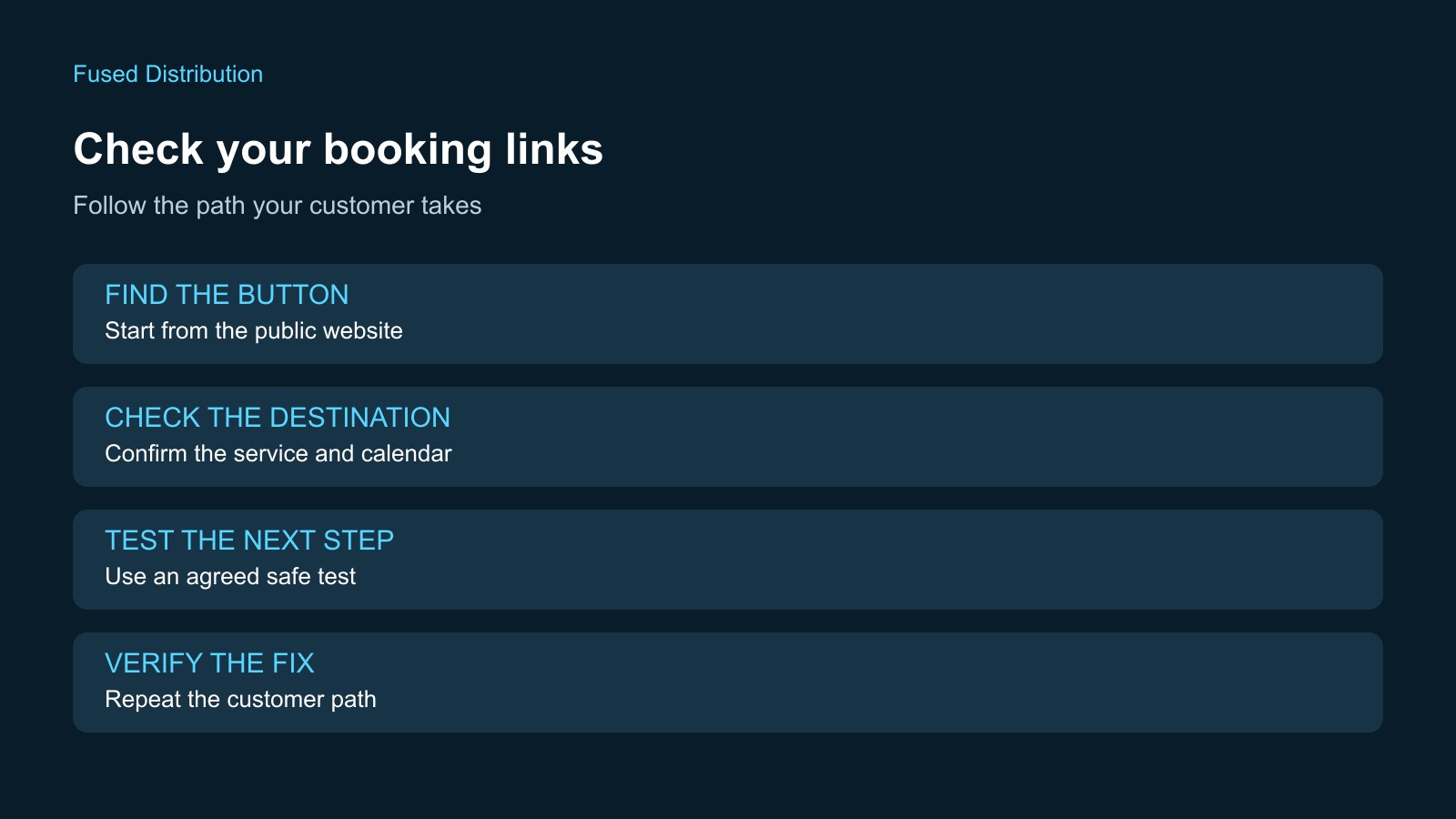
A booking button needs to lead to the right service and a usable next step. A page that opens without an error is only part of that check. Follow the path a customer would take, confirm the destination and record what happens before you call the link fixed.
This checklist helps a business owner review booking links with the person responsible for the website and scheduling account. It does not require creating real appointments. Agree on a test method before submitting anything that could reserve time, charge money or notify staff.
Make a list of booking entry points
Start with the homepage button, navigation, service pages and contact page. Include booking links in the footer and any banner promoting a particular service. Record the page address, button label and intended destination for each one. If a button opens a panel instead of another page, note that behavior too.
Do not assume that changing one button updates every copy. A link in a reusable navigation component may behave differently from a link pasted into a service description. Ask the website owner where shared links are configured so corrections can be made at the appropriate source.
For a larger site, use a link checker to help locate entries, then manually review the important customer paths. Keep a separate list for booking links outside the website, such as social profiles or email templates. They may need their own owner and update process.
Test as a visitor
Open the public page in a browser session that is not signed into the business's booking account. Follow the visible button rather than pasting the expected destination directly into the address bar. This checks the path customers actually receive, including any intermediate page or redirect.
Record the final address and the page shown. Confirm the business name, location and service. Look for an account administration page, a retired calendar, an unrelated service or an unexpected sign-in requirement. If customer sign-in is intentional, check that the page explains it clearly and provides the expected way to continue.
A technical success response is not a complete booking test. MDN describes HTTP 200 as a successful request. From a business review perspective, you still need to check whether the returned page is the correct destination and supports the intended action. A working response can show the wrong calendar.
Check the next step, not just the landing page
Try selecting the intended service and viewing the relevant dates. Confirm the displayed location, duration and time zone against the business's booking setup. If you see no appointments, ask the calendar owner whether this is expected before treating it as a broken link. Availability and link routing are separate questions.
Check a phone as well as a desktop browser. Note a panel that extends beyond the screen, a button hidden beneath another element or an embedded calendar that fails to load. Save the device, browser, page and time of the test so someone else can reproduce the result.
If a booking tool opens in a new tab or window, verify that the transition is understandable. For an embedded tool, also test the provider's direct booking address if one is available and approved for customers. This can help the developer distinguish a problem with the website integration from a problem inside the booking service.
Use an agreed test booking when needed
A complete booking test may be appropriate after a change, but coordinate it with the calendar owner first. Use the provider's documented test mode when available. Otherwise agree on a clearly labeled test appointment, its recipient and how it will be canceled. Avoid real customer details and unintended charges.
Check the visitor confirmation and ask the responsible person to verify that the appointment appears in the intended calendar. If notifications are part of the agreed flow, verify those separately. A confirmation screen does not prove that every downstream message arrived.
Where a test cannot safely be completed, record that limitation. For example, you may have checked the route to payment without authorizing a charge. Do not label the entire process verified when the final step remains untested. Our website change review guide explains how to keep those acceptance checks explicit.
Report a reproducible problem
Describe one problem per entry: the starting page, the button clicked, the result and the expected behavior. Include the final address and a screenshot if useful. Remove personal information from evidence shared outside the business.
Assign the issue to the person who can correct it. The website owner may need to replace an outdated address; the scheduling owner may need to check the service configuration. Use your website access record to identify those responsibilities without sharing passwords in the issue report.
After the correction, repeat the same path from the public page. Then check other buttons that use the same destination. Save the reviewed result and date, including any remaining limitation. Do not close the issue solely because an editor shows the new address in the website settings.
Keep a small recurring check
Repeat the important paths after changing a booking provider, service, location or website layout. Choose a regular review interval that fits how often the business changes its scheduling setup. Assign a named owner and keep the entry-point list accessible to them.
The result should be a simple record of what was checked and what remains open. That makes the next review quicker and gives the business a specific response when someone reports that booking did not work.