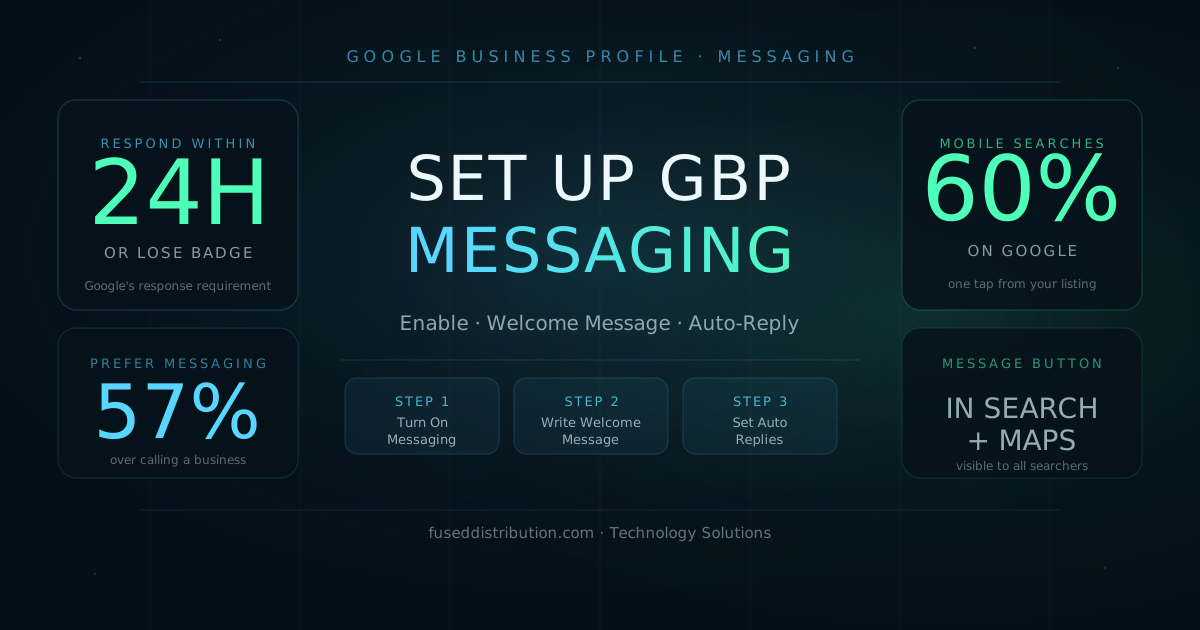
Google Business Profile messaging lets customers send you a text directly from your listing in Google Search and Google Maps. You turn it on from your GBP dashboard, write a welcome message that sends automatically when someone starts a chat, and then respond within 24 hours to keep the feature active. Most local businesses have not turned this on. That means a Message button on your listing gives you a contact channel your competitors are not offering.
This guide covers how to enable messaging, write an effective welcome message, set up auto-replies, and manage incoming messages without letting response time slip.
What Google Business Profile Messaging Does
When messaging is turned on, a Message button appears next to your Call and Website buttons in Google Search and Maps. Customers tap it, type a question, and the message lands in your GBP inbox. You reply from the Google Maps app or from business.google.com. The conversation stays in that thread, so there is a full record of what was said.
Messages do not go to your phone number or email by default. You need the Google Maps app installed on your phone with notifications turned on, or you need to check the GBP dashboard regularly. Missing messages is the most common problem with GBP messaging, and it is the reason Google will disable the feature if your response rate drops too low.
For a broader look at how your profile drives local discovery, see the GBP optimization guide for 2026.
How to Turn On GBP Messaging
There are two ways to enable messaging. Use whichever you have access to.
- Open the Google Maps app on your phone
- Tap your profile photo in the top right corner
- Tap Your Business Profile
- Tap Messages
- Tap the toggle to turn messaging on
Once enabled, turn on notifications inside the Messages section so you are alerted when a customer sends a message.
- Go to business.google.com and sign in
- Click your business profile
- Click Messages in the left sidebar
- Click Turn on or toggle the Chat feature to active
Desktop access gives you the same inbox view but does not send push notifications to your phone. Use the Maps app for real-time alerts.
Writing Your Welcome Message
The welcome message sends automatically the moment a customer opens a chat with your business. It is the first thing they see. A generic welcome message says nothing. A specific one tells the customer they reached the right place and sets an expectation for when you will reply.
Include these three elements:
- Your business name so they confirm they reached the right place
- Confirmation that you received their message
- Response time expectation so they know when to expect a reply
Example: Hi, thanks for reaching out to [Business Name]. We got your message and typically reply within a few hours during business hours. For immediate help, call us at [phone number].
Keep it under 100 words. Never copy a template word-for-word that applies to any business. Make it specific to what you actually do.
To set your welcome message, open the Messages section in your GBP dashboard, look for Welcome message or Automated response, and enter your text. Save it before leaving the page. This message does not replace a real reply. It buys you time and keeps the customer from feeling ignored while you get back to them.
Setting Up Auto-Replies
Auto-replies are separate from the welcome message. They are keyword-triggered responses you can set up for common questions. If most of your incoming messages ask about your hours, your pricing structure, or your service area, an auto-reply can answer those before you need to respond manually.
In the Messages section of business.google.com, look for Automated answers or FAQs. You can add up to three questions and answers. Google uses keyword matching to trigger the right response. Good candidates for auto-replies:
- What are your hours?
- Do you serve [specific area]?
- What is your pricing?
- Are you accepting new customers?
Auto-replies count toward your response rate. Google tracks whether messages are answered, not whether a human answered them. Use auto-replies to protect your response rate outside business hours.
The 24-Hour Response Rule
Google requires that you respond to every message within 24 hours. If your response rate falls below what Google considers acceptable, you will receive a warning in your GBP dashboard. If it continues to drop, Google will automatically turn off messaging for your profile. You will not lose ranking for this, but you will lose the contact channel.
The fastest way to protect your response rate is to combine three things: a welcome message, at least two or three auto-replies covering your most common questions, and push notifications enabled on the Google Maps app. With those in place, no message sits unanswered for hours while you are working.
- Turn on push notifications in the Google Maps app so messages alert you like texts
- Set a welcome message that auto-sends the moment a chat opens
- Create auto-replies for your two or three most common questions
- Check the GBP inbox once each morning as part of your opening routine
- If you go on vacation, turn messaging off rather than letting messages go unanswered
What to Say When You Reply
Keep your manual replies short and direct. Customers who message a local business from Google Maps are usually in the research phase. They want a quick answer, not a paragraph. If the answer is complex, give the short version and offer to continue by phone.
- Answer the specific question first. Do not start with "Great question" or "Thanks for reaching out."
- Include your name so the message feels personal, not automated
- If the question leads to a booking or a quote, give a next step: "Call us at X" or "Visit our site at Y to see pricing"
- Never paste a link without explaining what it is. "Here is our service area map: [link]" works. A bare link does not.
- Do not copy and paste identical replies. Google and customers both notice templated responses.
For tips on what to post on your profile to reduce incoming questions, see the guide on what to write in GBP posts.
Should You Turn Off Messaging if You Can't Keep Up?
Yes. If you cannot realistically check messages at least once per day, turn messaging off. A profile with messaging disabled is better than a profile where Google has auto-disabled it due to a poor response rate. You can re-enable it whenever your capacity changes. The setup takes about two minutes.
Businesses that should strongly consider enabling it: service businesses where customers need a quick quote or availability check, businesses with off-hours inquiries where a call would go to voicemail anyway, and any business where a competitor has messaging turned off. That last one is an easy way to offer a contact option they are not providing.
Frequently Asked Questions
Sources
- Google — Turn on messaging for your Business Profile. support.google.com/business/answer/9114771
- Google — Respond to messages from customers. support.google.com/business/answer/9008920
- BrightLocal — Local Consumer Review Survey 2024. brightlocal.com
- StatCounter — Mobile vs Desktop Market Share Worldwide 2024. gs.statcounter.com