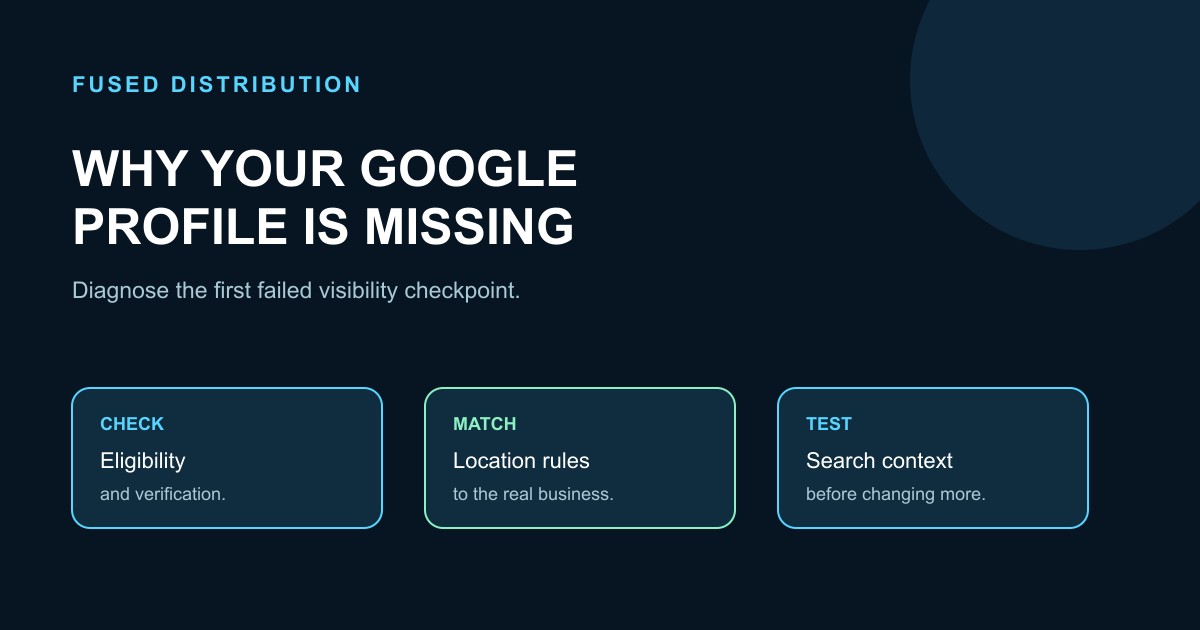
When a business owner says a Google Business Profile is not showing up, the problem can mean several different things. The profile may be ineligible, unverified, suspended, hidden by an address mistake, duplicated, or visible but ranking below the searcher’s view. Treating every case as an optimization problem wastes time and can make a policy issue worse.
Start with a diagnostic question: can the owner find and manage the profile in the Google account that should control it? Then check whether the public profile exists, whether it appears for the business name, and whether it appears for a relevant service search from a real location. Record the search phrase, location, device, date, and result. Search results vary by context, so one missing result is evidence to investigate, not proof that the profile is gone.
Check eligibility before changing details
Google says a Business Profile is for a business that makes in-person contact with customers during its stated hours. Online-only businesses, lead generation companies, rental properties, and businesses using a remote mailbox are examples that may not qualify. Read the current Business Profile eligibility and ownership guidelines before creating another listing.
If the business does not meet the eligibility rules, adding keywords, photos, or posts will not solve the underlying problem. Write down the actual customer contact model: storefront, service area, or hybrid. Keep evidence that the business exists and that the person managing it is authorized. Do not create a second profile to work around an eligibility or ownership issue.
Confirm the profile is claimed and verified
An unclaimed profile is different from a verified profile that ranks lower. Google’s add or claim guidance explains that an eligible business can add or claim a listing and then follow the available verification steps. Verification confirms that the person managing the listing is authorized to represent the business.
Sign in to the account used for management and search for the business name in Google Search or Maps. Check whether Google asks for verification, shows a pending action, or offers a button to complete the profile. Use the verification method presented in the account. Avoid repeated edits from several accounts while ownership is unclear; keep one accountable owner and add managers only when needed.
Look for suspension or account restrictions
If the profile or the managing account is suspended, ordinary profile edits are not the right first move. Google’s Business Profile policy overview explains that policy violations can restrict content or access, and that unverified profiles may have content rejected. The suspension and disabled profile guidance describes the appeal path and the kinds of evidence that can support it.
Open the account’s notices and capture the exact status. Review the business name, address, category, service area, and evidence against the current guidelines. Correct the underlying issue before appealing. Do not create a replacement listing during an appeal, and do not submit documents with mismatched business names or addresses. Keep a dated record of the notice, changes, submitted evidence, and response.
Match the address to the real business model
Address errors are common because a service-area business and a storefront are represented differently. Google’s guidelines for representing a business say to use a precise real-world address when customers visit and to hide the address when the business travels to customers without serving them at that location. A virtual office, remote mailbox, or address the business cannot represent can create a policy problem.
If customers visit the location, check the street address, suite, signage, hours, and map pin. If the team travels to customers, review the service-area settings and remove an address that should not be public. Google says service areas should be specific places such as cities or postal codes, rather than an arbitrary radius. Its service-area guidance also explains how to represent service areas and eligible locations. Separate staffed locations can have different eligibility; do not assume one rule fits every business structure.
Do not add locations only because they are desirable markets. List places the business actually serves under the applicable rules. Save a screenshot or export of the current setting before changing it so the team can tell what changed.
Rule out duplicates and ownership conflicts
Search Google Maps for the business name, phone number, address, and website. Look for an older listing, a duplicate created by another account, or a profile marked permanently closed after a move. Duplicate profiles split management and can confuse customers. An ownership conflict should be resolved through the profile’s ownership flow, with the business owner involved.
Keep the core identity consistent across the profile and the business website: the real business name, phone number, location or service area, and website for that location. Consistency is a way to reduce confusion, not a promise of a ranking result. Avoid adding city names, services, or slogans to the business name when they are not part of the real-world name.
Complete useful information after the foundation is sound
Once eligibility, ownership, verification, and location rules are clear, fill in the information a customer needs. Google’s local ranking guidance says complete and accurate information helps a profile appear for relevant local searches. Add the correct category, hours, phone number, website, services, and attributes that describe the business. Keep special hours current when they change.
Add photos and videos that represent the real business and respond to genuine reviews. Use a clear description that explains what the business does in ordinary language. Do not stuff the description with repeated locations or make claims the business cannot support. Helpful completeness improves the customer’s ability to choose and contact the business; it does not guarantee a particular position.
Separate visibility from ranking
A profile may be live for a branded search but absent for a broad service search. That does not automatically mean it is broken. Google explains that local results are mainly based on relevance, distance, and prominence. A business can be relevant but outside the searcher’s area, or close by but a weaker match for the query. There is no request or payment that buys a better local ranking.
Test three searches: the exact business name, the main service plus a town, and a broader service phrase from the service area. Test from more than one reasonable location without repeatedly searching to manufacture a result. Record whether the profile is visible, whether the information is correct, and what action the searcher can take. Compare observations over time instead of promising a fixed position.
Use a repair checklist and stop changing everything at once
Create one issue record with the profile URL or identifier, owner account, business model, current status, address or service area, primary category, and evidence. Choose the first failed checkpoint: eligibility, ownership, verification, suspension, location compliance, duplicate, or incomplete information. Make the smallest supported correction, then document it before moving to the next checkpoint.
Keep a monthly change log with the date, field changed, reason, and observed result. If a profile is suspended or ownership is disputed, escalate through Google’s support and appeal processes rather than experimenting with new listings. If the profile is verified and accurate but simply appears lower for a broad query, treat that as a local visibility and relevance question, not a missing-profile emergency.
The practical order is simple: confirm eligibility, verify ownership, read any restriction notice, represent the real location, resolve duplicates, complete useful information, and test branded and service searches from documented locations. This sequence gives the owner a defensible next step without promising a ranking position or a guaranteed fix.
For the initial setup steps, use our Google Business Profile setup guide. Once the account and listing are sound, our profile optimization guide covers ongoing improvements.
Related
Read next: Google Business Profile setup guide